Arrange your workspace
Use several views
A view is a dashboard tab with its own filters, timeline, zoom and repositories. Use one per angle on your work, for example one with every agent on your main project and one with only the agents that need input.
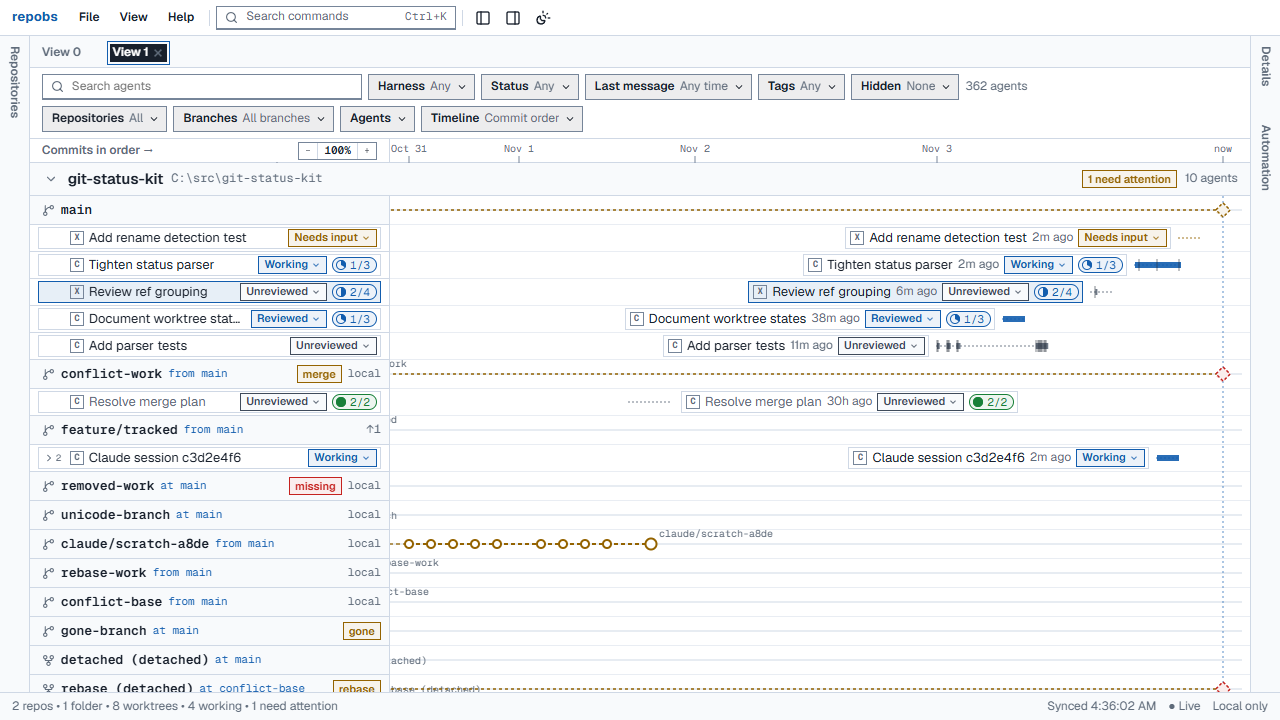
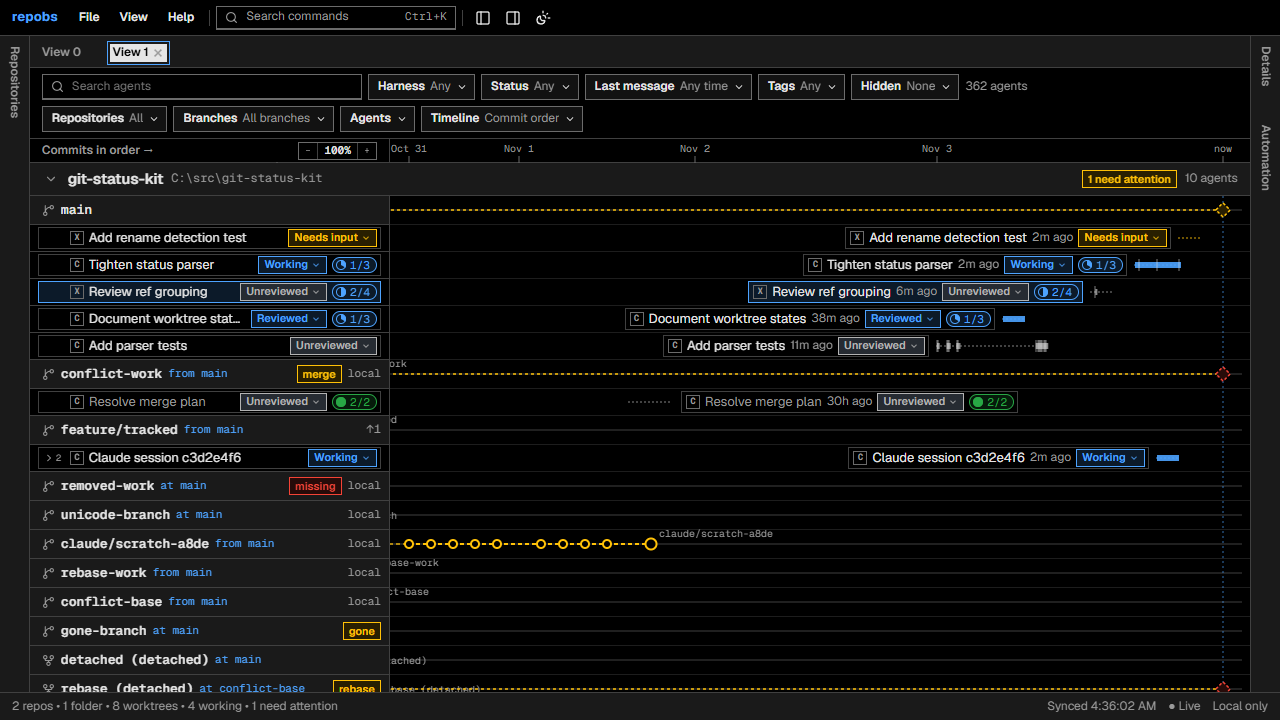
- Open a view: View → Open new view (Ctrl+Alt+N).
- Rename it: double-click its tab.
- Close it: click × on its tab.
- Choose its repositories: tick them in the repositories panel, or use the view's Repositories menu.
- Put two views side by side: drag a view's tab to the side of another view.
Arrange the panels
The repositories panel (left) lists your projects. The ticks choose which ones the current view shows; click a name to jump to it.
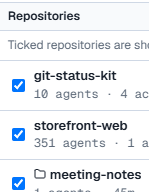
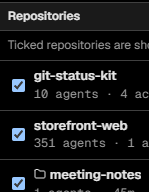
The details panel (right) shows the selected agent or branch. The automation panel holds your rules.
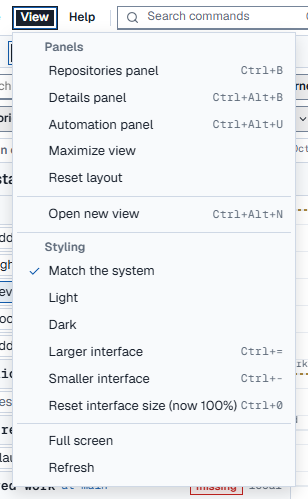
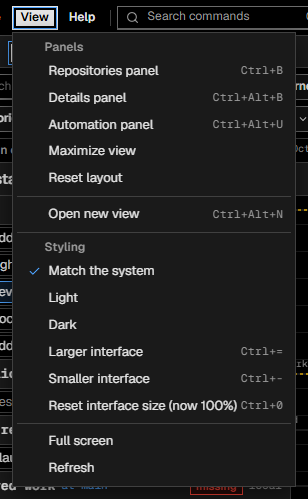
- Show or hide a panel: View → Panels, the buttons in the top bar, Ctrl+B (repositories) or Ctrl+Alt+B (details).
- Move a panel: drag its tab to the other side, or beside a view.
- Give the view the whole window: View → Panels → Maximize view; choose it again to bring the panels back.
- Start over: View → Panels → Reset layout. Views keep their names and settings.
repobs remembers the arrangement in this browser.
Find any command
Press Ctrl+K and type part of a command's name, then Enter.
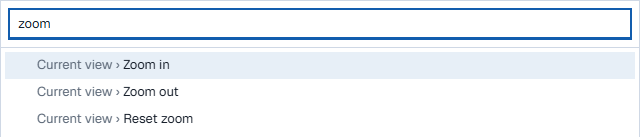
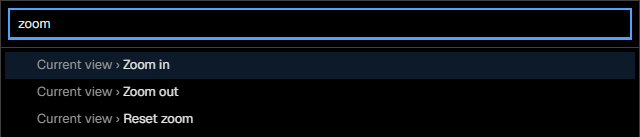
This includes the current view's options, renaming it and sorting the repositories.
Change the look
- Theme: the sun and moon button in the top bar, or View → Styling.
- Interface size: Ctrl + mouse wheel, Ctrl + = and Ctrl + −, or View → Styling. Ctrl + 0 resets it.
Settings
Open File → Settings:
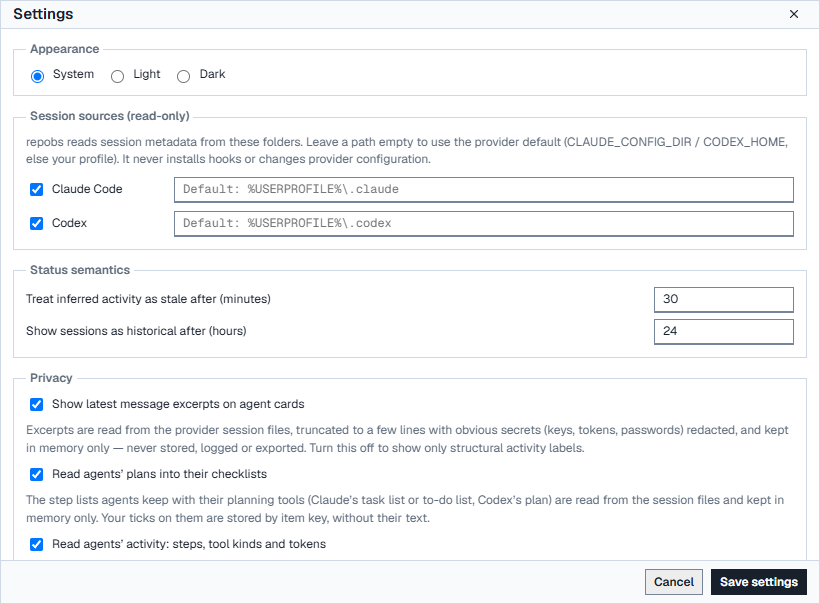
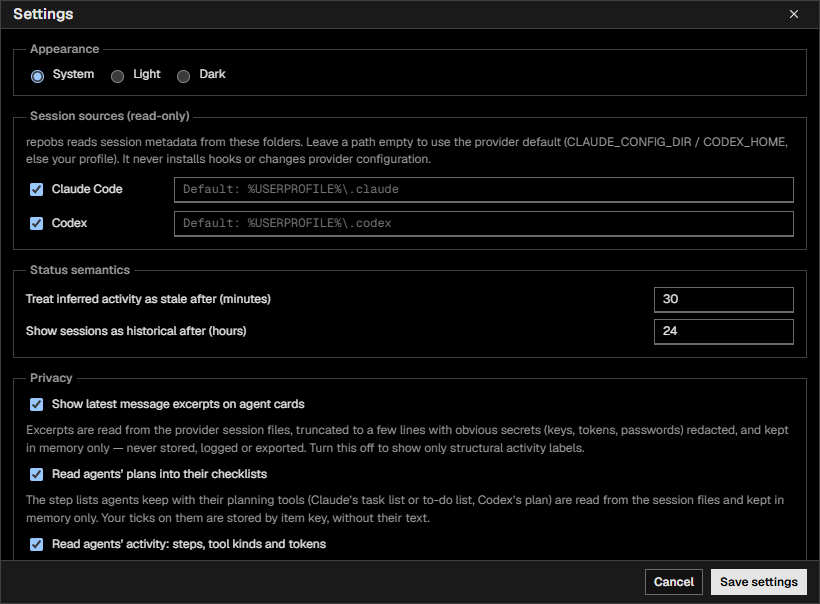
- Session sources: turn Claude Code or Codex off, or point repobs at their folders.
- Status semantics: when an agent's state counts as stale and when an agent counts as historical.
- Privacy: turn off message excerpts, agent plans or agent activity.
- Monitoring: how often repobs checks your worktrees.
- GitHub pull requests: off unless you turn it on; uses your
ghlogin. - Annotations: export or import your notes.
Save and move your setup
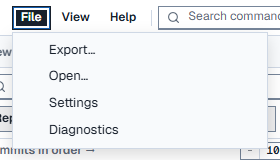
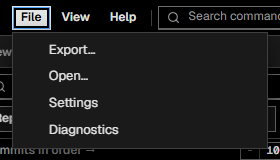
- File → Export… saves your notes and every view in one file.
- File → Open… reads such a file: notes are merged, views replace the current ones.
Get help
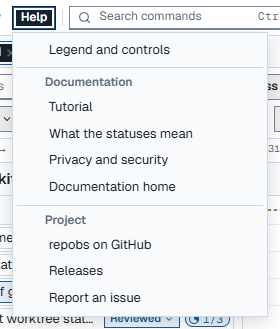
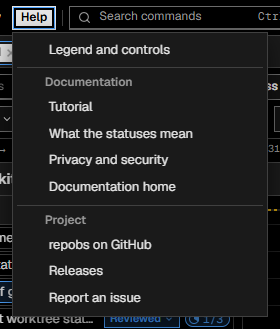
Help → Legend and controls explains every mark and control. The other items open this documentation, the GitHub repository, the releases and a new issue.
Remove a repository
In the repositories panel, click × beside it, then Remove from repobs. Nothing on your disk changes and your notes on its agents stay.
Keyboard
| Key | Action |
|---|---|
| Ctrl+K | Search commands |
| Tab to the dashboard, then ↓ | Focus the first row |
| ↑ / ↓, Home / End | Move between rows |
| → / ← | Show / hide an agent's spawned agents |
| Enter | Open the focused row in the details panel |
| + / − / 0 | Zoom the history in / out / reset (dashboard focused) |
| Ctrl+B / Ctrl+Alt+B | Show or hide the repositories / details panel |
| Ctrl+Alt+U | Show or hide the automation panel |
| Ctrl+Alt+N | Open a new view |
| Ctrl+= / Ctrl+− / Ctrl+0 | Interface size larger / smaller / reset |
| F6 / Shift+F6 | Move to the next / previous group of tabs |
| Esc | Close dialogs, menus and lists |