Follow your agents
Every Claude Code (C) and Codex (X) session is a card under the branch it worked on, newest first. Its line on the timeline runs from its first to its last activity, and a card at the end of the line repeats its name and status.


Read the status
The status on each card tells you what needs you:
- Needs input: the agent asked you something or stopped on an error.
- Working: the agent is running.
- Unreviewed: the agent finished and you have not looked at its work yet.
- Needs review, Reviewed, Complete, Flagged, Outdated: the review state you set (see Review and take notes).
- Unknown: repobs cannot tell.
What the statuses mean explains each one in detail.
See an agent's details
Hover an agent's name for its state, last activity, latest message, review state and checklist progress:
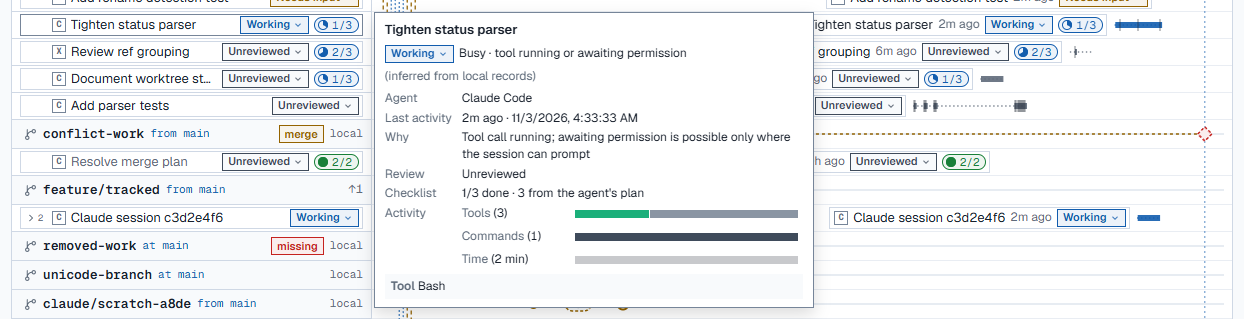
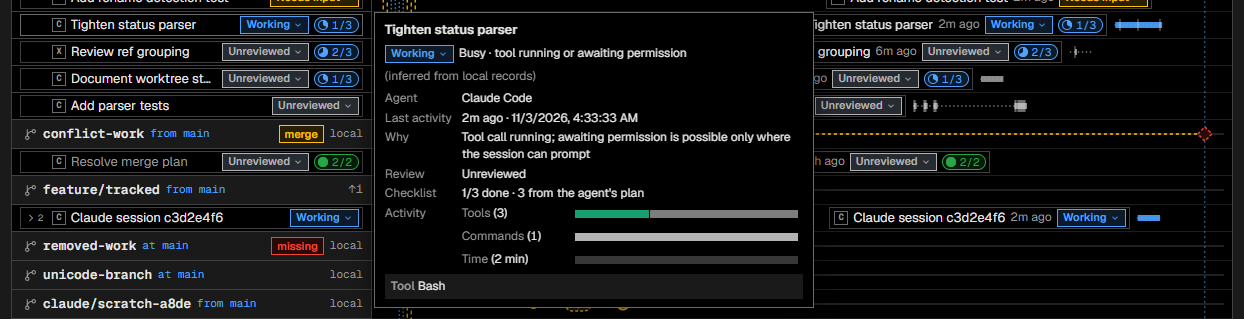
On the timeline, rest the pointer on the line or card for half a second to open the same card.
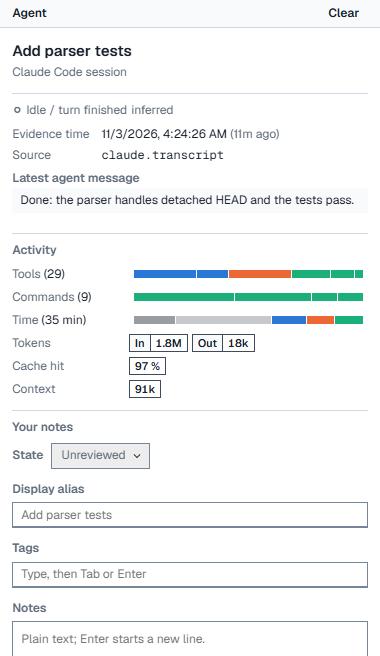
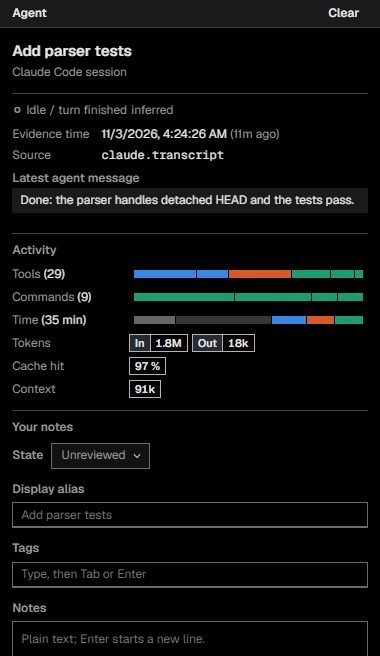
Click an agent to open it in the details panel, with its activity and your notes:
See what an agent did
On the timeline, an agent's line is solid while it was working and dotted while it waited. Each tool call adds a small tick.
Zoom to 300 % or more, or choose Agents → Activity detail → Always, to see its steps on the line:


- Grey: the model responding; darker with thinking.
- Blue: reading and searching. Orange: editing. Green: shell commands; hatched for tests and builds.
- ◆ a Git change such as a commit or push; ○ a Git inspection such as
git status. - A dark line marks a new prompt, a red underline a failed tool call, a red × an error.
Detail is easiest to read on Timeline → Calendar time, where each step keeps its real length.
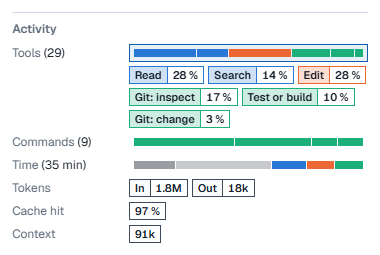
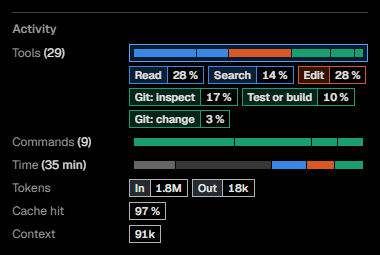
In the details panel, Activity sums up the agent:
- Tools, Commands and Time show a total and a bar split by kind.
- Tokens shows how much went in and out, Cache hit how much of the input was reused, and Context how full the model's context is now.
Click a bar to list its parts with their amounts:
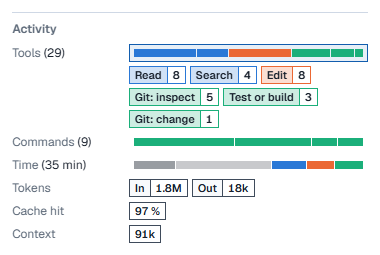
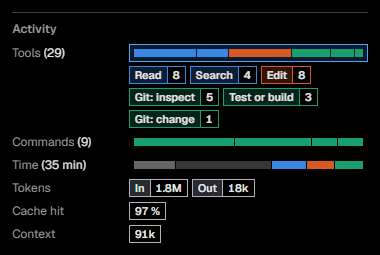
Click it again for each part's share, and a third time to close the list.
To see how full the context was over time, choose Agents → Agent line → Height: context used. Each agent's line then gets taller as its context fills.
Show spawned agents
An agent that started other agents has a chevron with a count (› 2). Click it, or press → on the focused row, to show them. ← hides them again.


To show every spawned agent, untick Agents → Collapse spawned agents.
Follow the agent's plan
When an agent keeps a task list or plan, a pill after its status shows how far it has got, for example 1/3. Click the pill to see the steps.


The list follows the agent as it works. You can tick or untick a step yourself; that stays in repobs and never reaches the agent. Your own checklist items appear below the agent's plan.
Choose how agents are shown
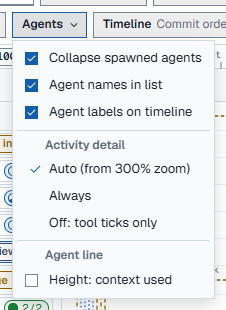
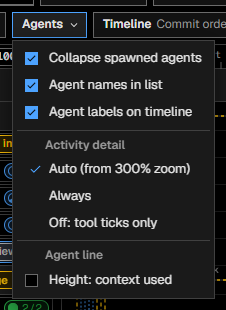
- Agent names in list: turn off to give the history more room.
- Agent labels on timeline: turn off to hide the cards at the end of the lines.
- Activity detail: Auto shows detail from 300 % zoom; Always or Off fix it.
- Agent line → Height: context used: described above.
Next: Review and take notes