Review and take notes
repobs keeps your review of each agent's work separate from what the agent is doing: an agent can be finished and still need your review. Your notes are stored in repobs only, never in your repositories or the agents' files.
Set a review state
Click an agent's status and choose a review state:
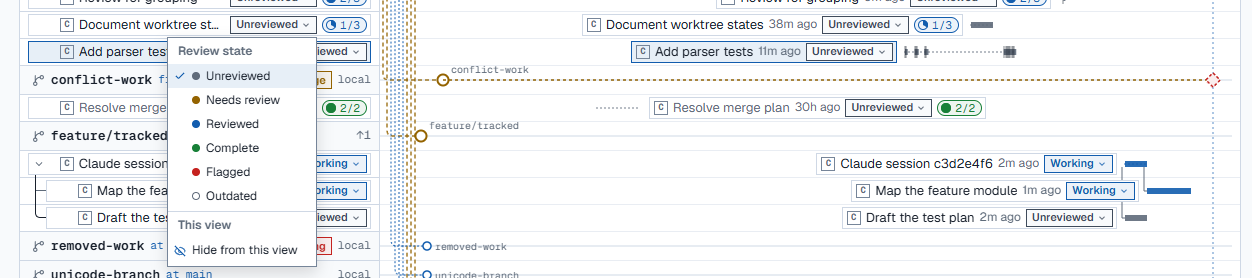
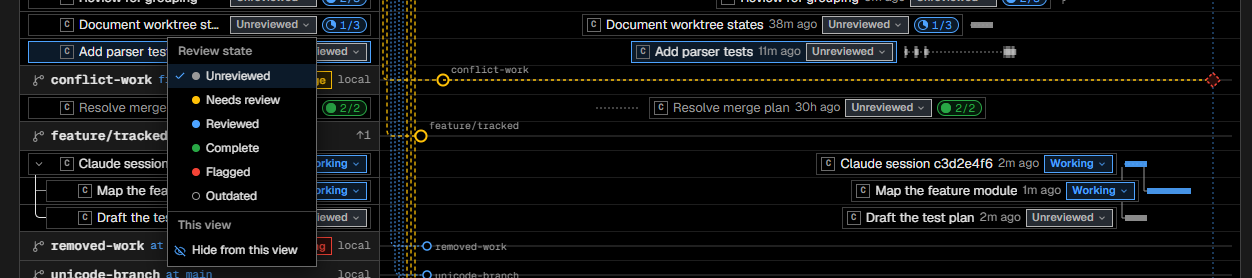
- Unreviewed: you have not looked yet (the default).
- Needs review: come back to it.
- Reviewed: you have looked at it.
- Complete: its work is done and accepted.
- Flagged: something is wrong.
- Outdated: no longer relevant.
While an agent needs input or is working, its card shows that instead; your review state is in its hover card and details.
Take notes
Click an agent to open it in the details panel. Under Your notes:
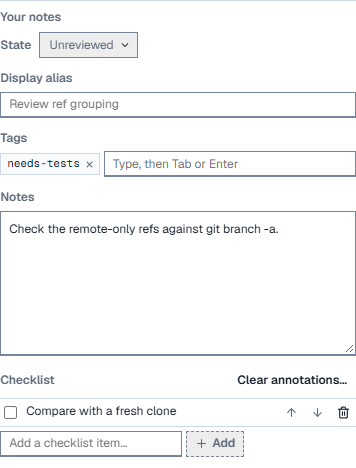
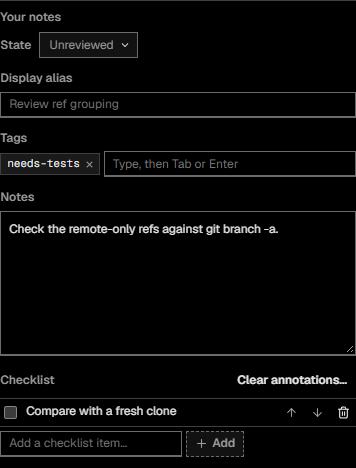
- State: the review state.
- Display alias: a name of your own for the agent.
- Tags: start typing to reuse a tag; Tab or Enter adds it.
- Notes: plain text; Enter starts a new line.
- Checklist: add items, tick them, reorder or delete them.
Everything saves as you type. Clear annotations… deletes the agent's notes after you confirm.
Filter the agents
The bar above the dashboard narrows the agents shown:
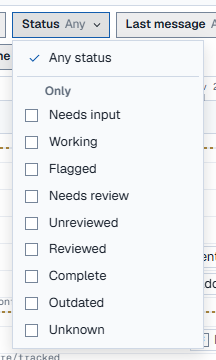
- Search: names, aliases, tags, session ids and the latest message.
- Harness: Claude Code, Codex or both.
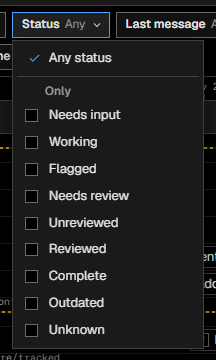
- Status: any combination of statuses.
- Last message: within the last 24 hours up to 40 days.
- Tags: agents with any of the tags you pick.
Clear filters shows everything again.
Hide agents from a view
To hide one agent, click its status and choose Hide from this view. To hide every agent in a review state, for example all Outdated ones, tick it under Hidden → Hide agents marked.
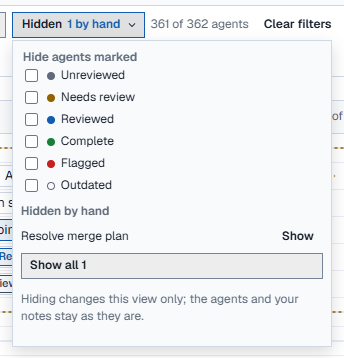
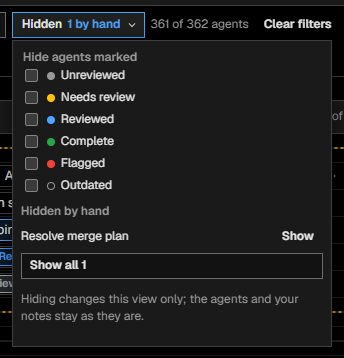
Hidden agents are listed in the same menu, each with Show. Hiding changes only the current view.
Automate with rules
Rules set review states, tags and notes for you, as if you had made the change yourself. Open them with View → Panels → Automation panel (Ctrl+Alt+U).
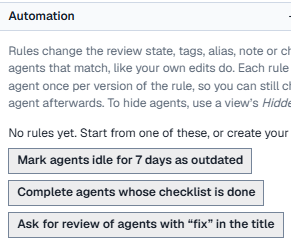
- Click a suggestion, or New rule.
- Set the conditions: how long since the last activity, a word in the title, note or branch, a review state, a tag, the harness, whether the agent is working, its checklist, whether it was spawned. Choose whether all of them or any one must hold.
- Set the actions: set the review state, add or remove a tag, set the alias, add to the note, add or tick checklist items.
- Check the count of agents the rule matches now, then save.
A saved rule changes each matching agent once. If you change that agent afterwards, your change stays. Editing the rule's conditions or actions applies it again.
Next: Arrange your workspace