Install and add your projects
You need Windows, Node.js 24 LTS (24.11 or newer), Git for Windows on PATH, and Edge, Chrome or Firefox. No administrator rights, API keys or GitHub account.
Install
From a release
- Download
repobs-<version>.zipfrom the Releases page. - Unzip it anywhere, for example to
C:\Tools. -
Open PowerShell in the unzipped
repobs-<version>folder and run:npm start
To upgrade, stop repobs and replace the folder with a newer release. Your notes and settings stay in %LOCALAPPDATA%\repobs.
From source
git clone https://github.com/Chengxuan-Li/repobs.git
cd repobs
npm ci
npm run build
npm start
Start repobs
npm start starts repobs on http://127.0.0.1:47321 and opens your browser with a one-time pairing link. Keep the PowerShell window open; press Ctrl+C in it to stop repobs.
The first time, the dashboard is empty:
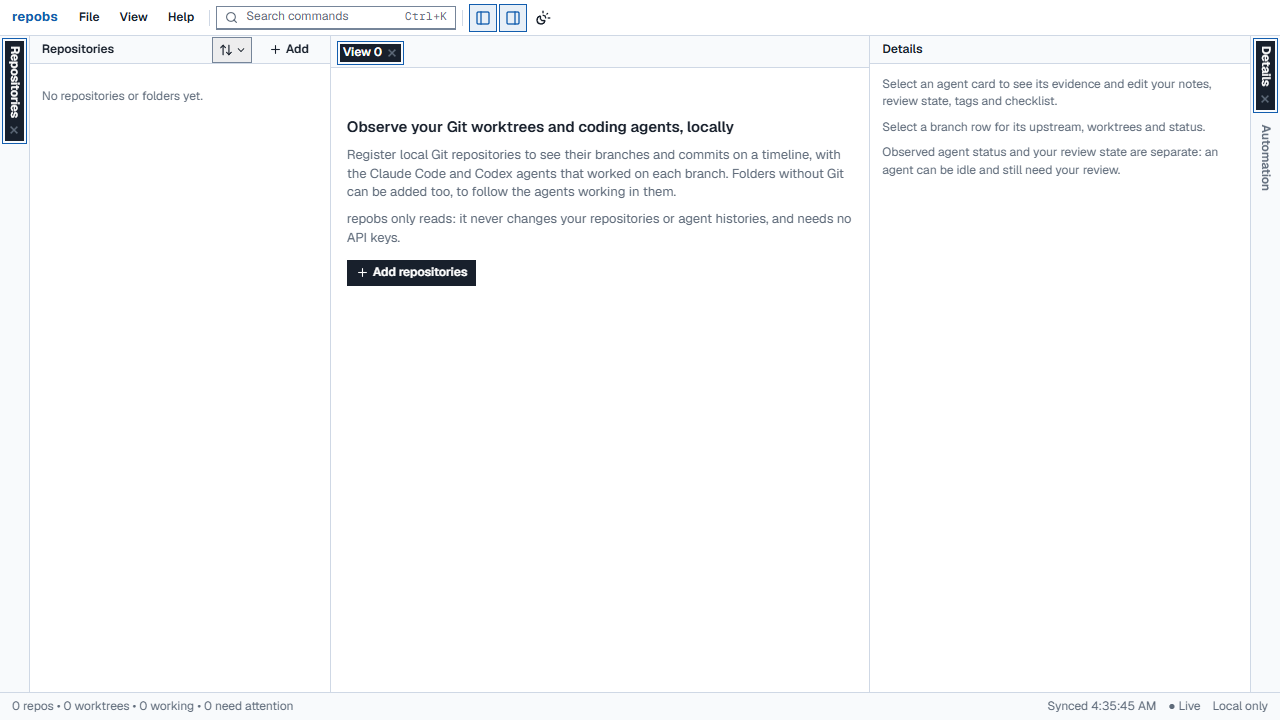
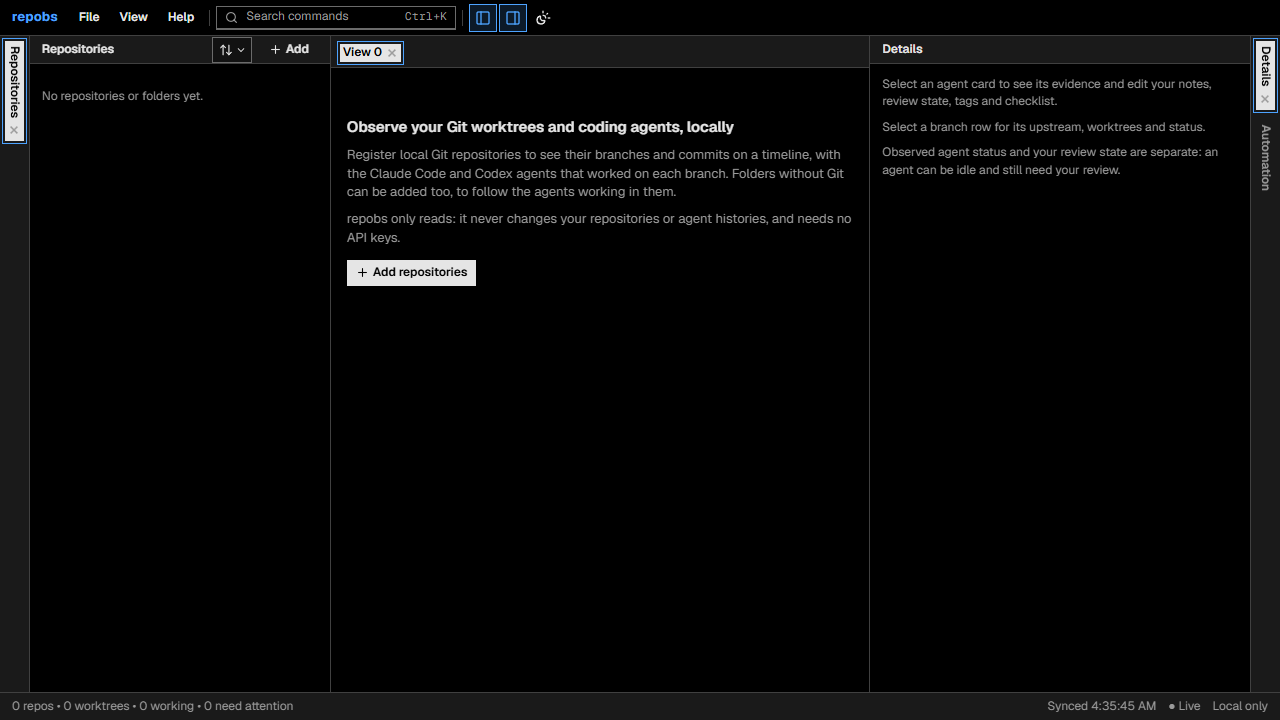
A browser tab you open yourself shows This browser is not paired with repobs. Run npm run open to get a new pairing link.
Add repositories and folders
- Click Add repositories (or Add at the top of the repositories panel).
- Tick the projects you want. The list shows the folders your Claude Code and Codex agents have worked in, with how many sessions each has and when they were last active. Folders that are not Git repositories are marked folder.
- Click Add.
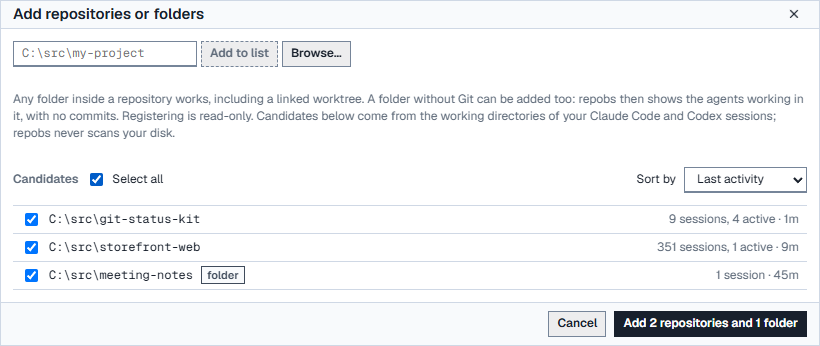
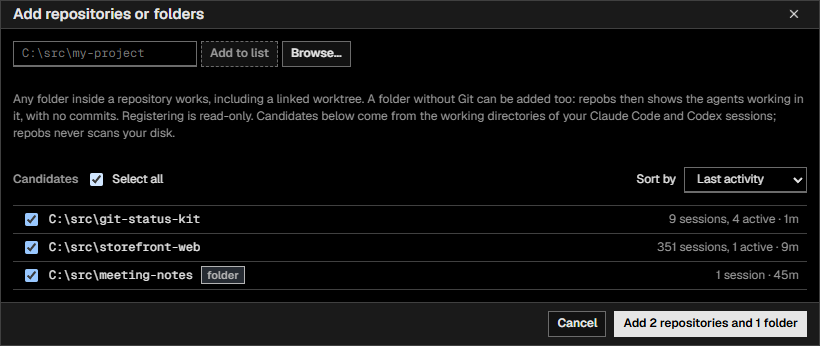
To add a project that is not in the list, type its path and click Add to list, or click Browse… to pick it in a Windows folder dialog. Any folder inside a repository works, including a linked worktree: repobs adds the whole repository once.
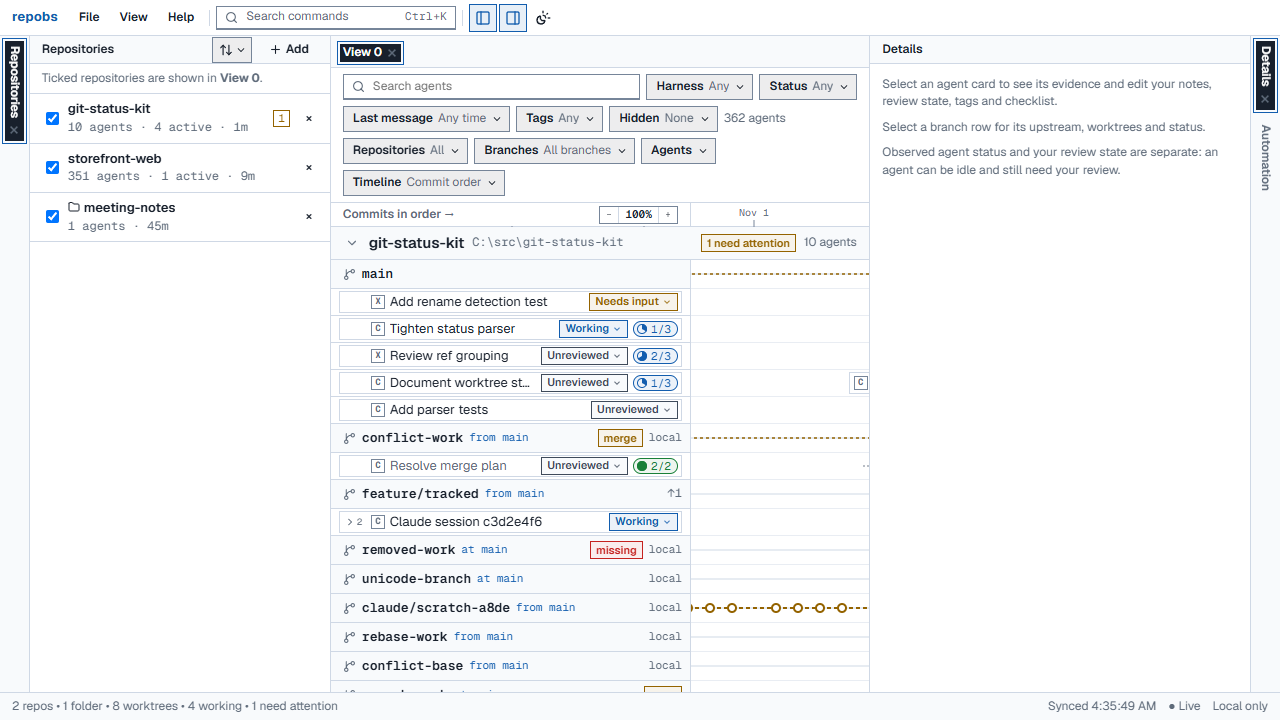
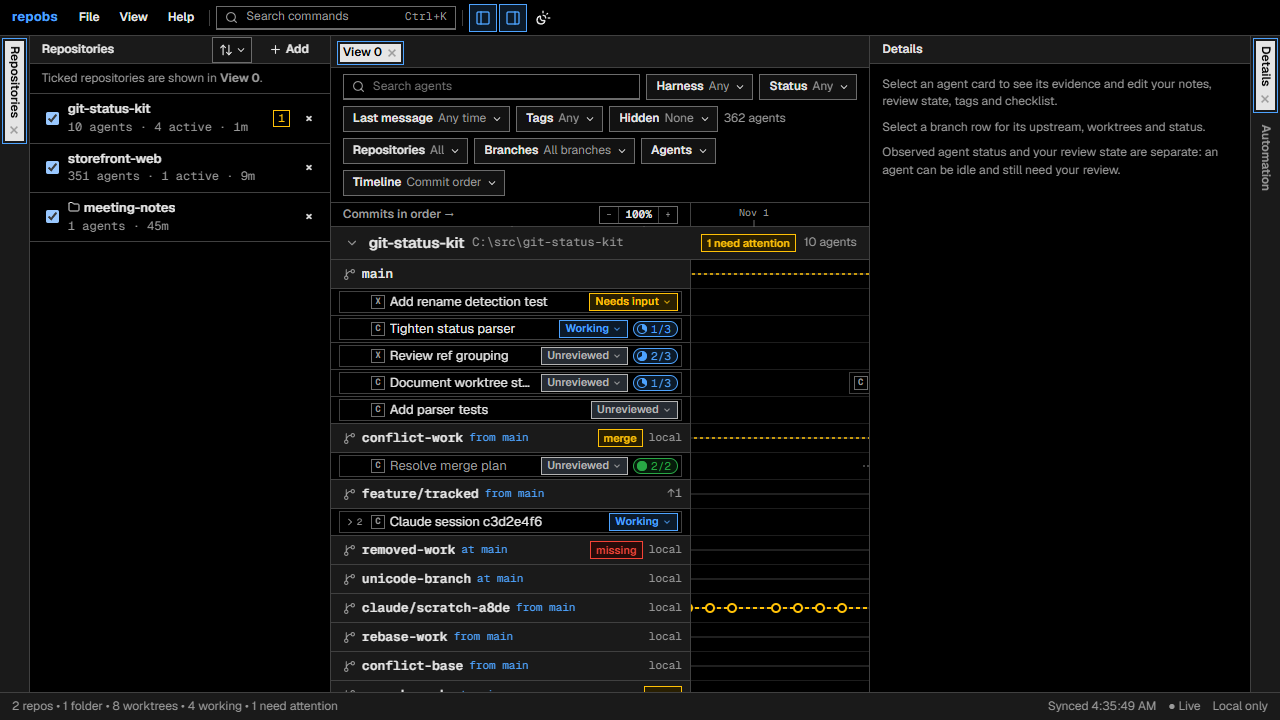
The dashboard now shows each repository with its branches, commits and agents:
Folders without Git
A folder shows the agents that worked in it and in its subfolders, under one Folder row, without commits or branches.
- A repository you added inside a folder keeps its own agents.
- You cannot add a drive root, your home folder, or a folder inside a Git repository (add the repository instead).
- If you run
git initin a folder, its board says now a Git repository. Add the repository, then remove the folder. Your notes stay with the agents.
Check that your agents are found
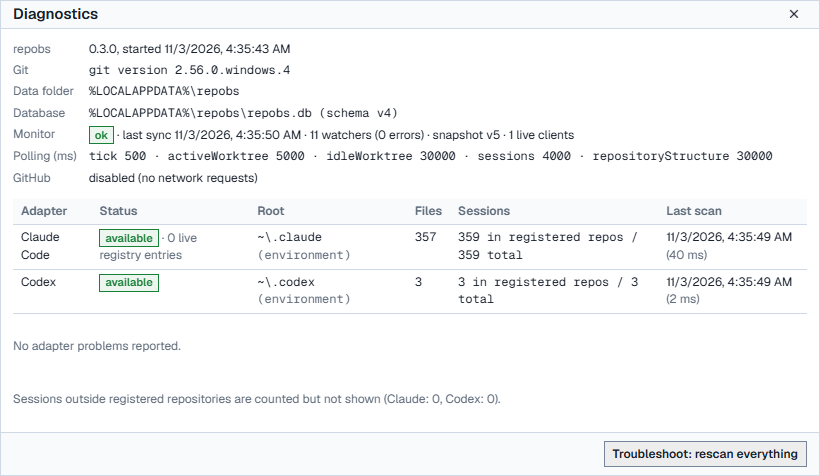
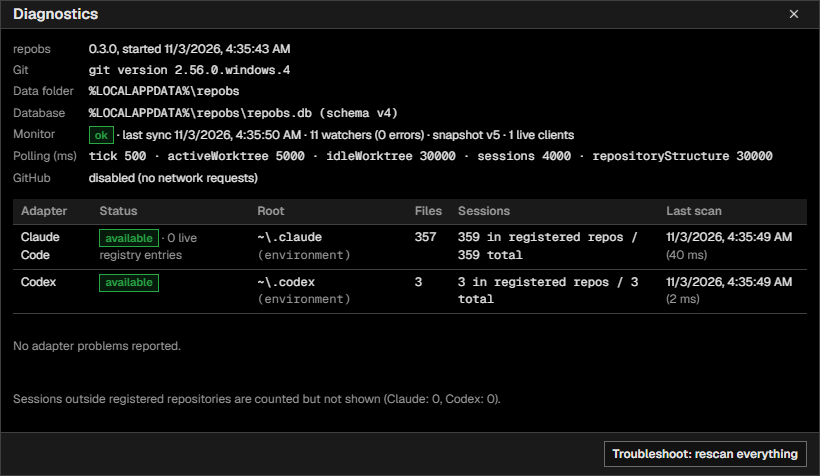
Open File → Diagnostics. For Claude Code and Codex it shows whether their folders were found and how many sessions belong to your projects.
If your agents keep their files somewhere else, set the folders in File → Settings → Session sources.
Try it on demo data
node scripts/demo.ts C:\temp\repobs-demo
This creates sample repositories and agent sessions and prints the commands to start a separate repobs on them.
Stop and uninstall
- Stop: press Ctrl+C in the window where repobs runs.
- Uninstall: delete the repobs folder and
%LOCALAPPDATA%\repobs.
If something goes wrong
| What you see | What to do |
|---|---|
| Git is not installed or not on PATH | Install Git for Windows and start repobs again. |
| repobs needs Node.js 24 | Install Node.js 24 LTS. |
| The port is in use | repobs tries the next nine ports. Set REPOBS_PORT to choose another. |
| Git refuses this repository because of its ownership | If you trust the folder, run git config --global --add safe.directory <path>. |
| No agents appear | Open File → Diagnostics, then set the folders in Settings → Session sources. |
| This pairing link is invalid, expired or already used | Run npm run open. Links work once, for five minutes. |
Logs are in %LOCALAPPDATA%\repobs\logs\server.log.
Next: Read the dashboard